Camera#
The Camera module will showcase how you can capture a video using a USB camera, a CSI-2 camera, or an FPD-Link camera.
USB UVC Camera#
Plug in a USB UVC compliant camera and boot the EVM to Linux.
Use the v4l2-ctl command to verify the camera is detected:
# v4l2-ctl --list-devices
TI-CSI2RX (platform:30102000.ticsi2rx):
        /dev/media0

wave5-dec (platform:wave5-dec):
        /dev/video0

wave5-enc (platform:wave5-enc):
        /dev/video1

HD Web Camera: HD Web Camera (usb-xhci-hcd.1.auto-1):
        /dev/video2
        /dev/video3
        /dev/media1
GStreamer can be used to capture the video. The captured video can be
simultaneously sent to the HDMI display if a display is connected. Below is
an example of using GStreamer to stream video (make sure to change videoX
to the actual video device number) to a display using kmssink or waylandsink:
# gst-launch-1.0 v4l2src device="/dev/videoX" ! video/x-raw, width=640, height=480, format=UYVY ! kmssink driver-name=tidss force-modesetting=true
# gst-launch-1.0 v4l2src device="/dev/videoX" ! video/x-raw, width=640, height=480 ! waylandsink
The captured video can also be stored to a file and played out on the host PC. Instead of using kmssink as the GStreamer sink, a file sink can be used, for example:
# gst-launch-1.0 v4l2src num-buffers=50 device="/dev/videoX" ! video/x-raw, width=640, height=480 ! filesink location=cam-cap.yuv
Then the captured file can be played out on the host PC using an application such as mplayer:
$ mplayer -demuxer rawvideo -rawvideo w=640:h=480:format=yuy2 cam-cap.yuv
CSI-2 Camera#
AM62Ax supports MIPI CSI-2 compliant cameras. The AM62Ax starter kit (SK) EVM has a CSI-2 camera connector that is compatible with the Raspberry Pi camera interface.
Connect a CSI-2 Camera to the EVM
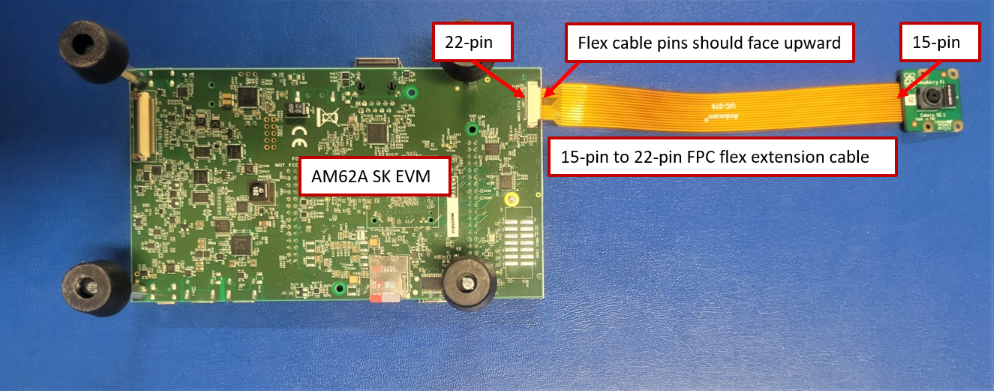
The CSI-2 camera connector is located at the bottom side of the EVM. A CSI-2 camera can be connected to the EVM as shown below:
Note
The CSI-2 camera connector on the AM62A SK EVM is a 22-pin FFC connector. For a camera with 15-pin FFC connector, a 15-pin to 22-pin flat flex cable is needed to connect the camera to the EVM.
Apply Device Tree Overlay
Since any camera can be connected to the EVM, the base dtb in the Processor SDK does not include the device tree node for any particular camera sensor. Therefore, the device tree node for a particular sensor should be added in as an overlay. The Processor SDK contains the device tree overlays for a few sensors, as shown below:
root@am62axx-evm:/boot/dtb/ti# ls k3-am62*-sk-csi2*.dtbo
k3-am62a7-sk-csi2-ox05b1s.dtbo  k3-am62x-sk-csi2-imx219.dtbo  k3-am62x-sk-csi2-ov5640.dtbo  k3-am62x-sk-csi2-tevi-ov5640.dtbo
The device tree overlay can be applied in either one of the following two ways:
Open file /run/media/BOOT-mmcblk1p1/uEnv.txt and add the following line at the end of the file, and reboot the EVM:
name_overlays=ti/k3-am62x-sk-csi2-imx219.dtbo
Reboot the EVM and stop at U-Boot prompt, and add the following environment variable:
=>setenv name_overlays ti/k3-am62x-sk-csi2-imx219.dtbo
=>boot
Verify the Camera Is Detected
Boot the EVM to Linux and use the v4l2-ctl --list-devices command to verify the camera is detected.
The command should return something similar to below:
# v4l2-ctl --list-devices
j721e-csi2rx (platform:30102000.ticsi2rx):
        /dev/video3
        /dev/video4
        /dev/video5
        /dev/video6
        /dev/video7
        /dev/video8
        /dev/media0

e5010 (platform:e5010):
        /dev/video2

wave5-dec (platform:wave5-dec):
        /dev/video0

wave5-enc (platform:wave5-enc):
        /dev/video1
The above command displays multiple video nodes (/dev/videoX). Each of these video nodes corresponds to a logical stream of data. If the camera is the only connected CSI-2 camera, then the first node under j721e-csi2rx should be used to stream.
For cameras supported by the SDK, script /opt/edgeai-gst-apps/scripts/setup_cameras.sh, which runs automatically after boot, will detect and set up the camera automatically. For example, IMX219 would be detected and configured after boot as below:
IMX219 Camera 0 detected
device = /dev/video-imx219-cam0
name = imx219
format = [fmt:SRGGB8_1X8/1920x1080]
subdev_id = /dev/v4l-imx219-subdev0
isp_required = yes
Both the device alias “/dev/video-imx219-cam0” and subdev_id alias “/dev/v4l-imx219-subdev0” can be used in the Gstreamer pipepline as shown in the below section.
Capture Video
Because the IMX219 is a raw image sensor, the ISP on the SoC needs to be used in order to stream video. Below shows an example of streaming video from an IMX219 camera:
# gst-launch-1.0 v4l2src device=/dev/video-imx219-cam0 io-mode=dmabuf-import ! \
  video/x-bayer, width=1920, height=1080, framerate=30/1, format=rggb ! \
  tiovxisp sink_0::device=/dev/v4l-imx219-subdev0 sensor-name="SENSOR_SONY_IMX219_RPI" \
  dcc-isp-file=/opt/imaging/imx219/linear/dcc_viss.bin \
  sink_0::dcc-2a-file=/opt/imaging/imx219/linear/dcc_2a.bin format-msb=7 ! \
  video/x-raw, format=NV12, width=1920, height=1080, framerate=30/1 ! \
  kmssink driver-name=tidss sync=false
For more details on configuring the sensor to different formats, please refer to Camera Development section.
Tested CSI-2 Cameras#
The following CSI-2 camera modules have been tested with the AM62A starter kit.
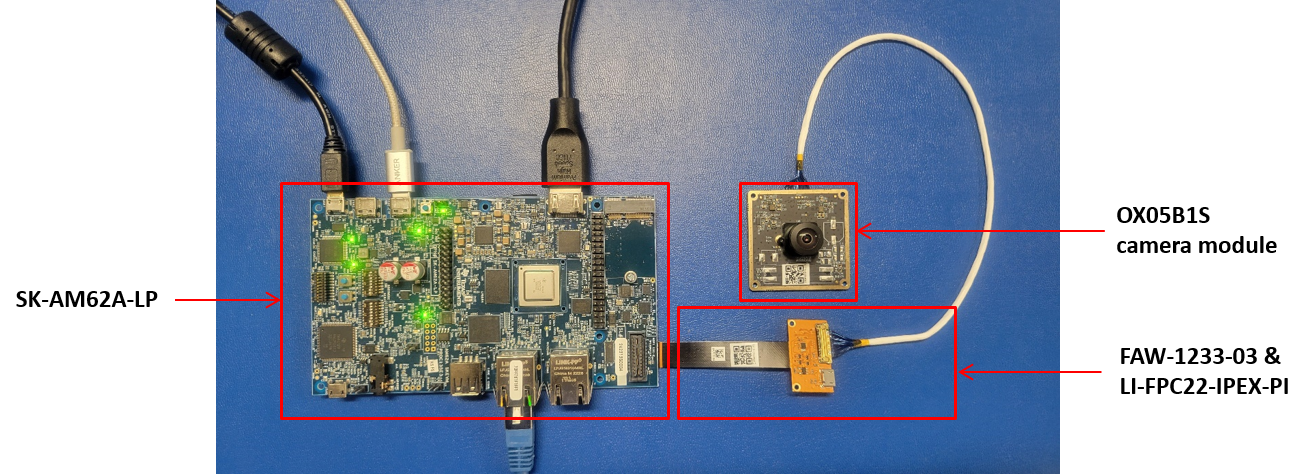
OX05B1S
Two adapters are needed to connect this module to the AM62A starter kit: FAW-1233-03 and LI-FPC22-IPEX-PI.
Script /opt/edgeai-gst-apps/scripts/setup_ox5b.sh needs to run to set up and configure the sensor and media pipe before streaming.
IMX219
OV5647
FPD-Link Camera#
FPD-Link cameras can be connected to the AM62A SK through the Arducam V3Link d-ch Rx board. The picture below shows how an FPD-Link camera can be connected to the AM62A SK.
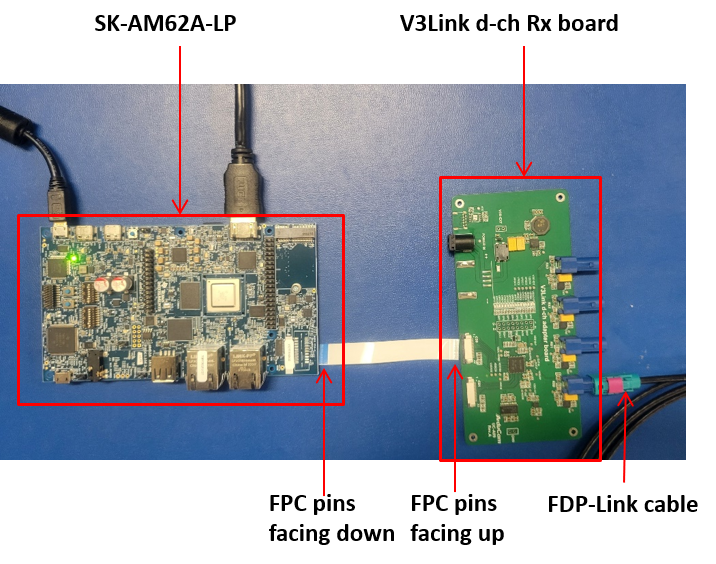
To enable an FPD-Link camera, use the device tree overlay for the V3link board and the camera overlay. For example, use k3-am62x-sk-csi2-v3link-fusion.dtbo and k3-fpdlink-ov2312-0-0.dtbo for connecting one OV2312 camera to channel 0 of the V3link board.
Tested FPD-Link Cameras#
The following FPD-Link cameras have been tested with the AM62A SK and the V3link board.
IMX390
OV2312
Running Multiple FPD-Link Cameras#
Multiple FPD-Link cameras can run on the AM62A SK when connected through the V3link board. Below are a few examples of running multiple cameras supported by the SDK. Script /opt/edgeai-gst-apps/scripts/setup_cameras.sh, which runs automatically after boot, will detect and set up the cameras automatically, except for the case of 4x IMX219.
IMX390 + OV2312
Use overlays: k3-am62x-sk-csi2-v3link-fusion.dtbo, k3-fpdlink-imx390-rcm-0-0.dtbo, k3-fpdlink-ov2312-0-1.dtbo
2x IMX390
Use overlays: k3-am62x-sk-csi2-v3link-fusion.dtbo, k3-fpdlink-imx390-rcm-0-0.dtbo, k3-fpdlink-imx390-rcm-0-1.dtbo,
2x OV2312
Use overlays: k3-am62x-sk-csi2-v3link-fusion.dtbo, k3-fpdlink-ov2312-0-0.dtbo, k3-fpdlink-ov2312-0-1.dtbo
4x IMX219
Use overlays: k3-am62x-sk-csi2-v3link-fusion.dtbo, k3-v3link-imx219-0-0.dtbo, k3-v3link-imx219-0-1.dtbo, k3-v3link-imx219-0-2.dtbo, k3-v3link-imx219-0-3.dtbo
Run script /opt/edgeai-gst-apps/scripts/setup_cameras_v3link.sh to setup all cameras and media pipe.
For more information on developing multiple-camera applications, please refer to application note Developing Multiple-Camera Applications on AM6x.