Edge Impulse on TI Processors (ARM-only)#
Introduction#
Edge Impulse is a tool for creating, analyzing, and deploying machine learning to embedded targets. TI Processors, like the AM62x and TDA4VM, running the default Processor SDK for Linux can quickly and easily be used directly with Edge Impulse’s tools, allowing developers to use their embedded processor to collect data and test their model.
TI’s processor portfolio (AM6xA devices) includes Deep Learning accelerators, primarily for vision-based tasks. Edge Impulse supports a wide variety of sensor types and for simpler sensors, these accelerators may not be necessary for acceptable performance - Arm cores may suffice. These instructions cover setup for arm-only use.
This page will describe how to set up Edge Impulse’s Linux command line tools on one of our processor Starter Kits running Linux so it can be connected to Edge Impulse cloud tools.
What you will need:
1. Set up device according to Starter Kit Quick-Start Guide#
Follow the instructions for the corresponding device under “Technical Documentation”
Once Linux is installed and you have a successful network connection, you can move on. Note that Edge Impulse tools may not be able to connect fully through a proxy.
2. Install Edge Impulse tools in Linux#
For CPU-only execution, Edge Impulse’s instructions for installing the tools to other Linux-based boards should work similarly to these instructions when using ‘npm’ or ‘pip3’ to install packages.
npm install -g –unsafe-perm edge-impulse-linux -p PROXY_URL:PROXY_PORT The base instructions for the Python3 and NodeJS based SDKs. Run the following command in the terminal.
npm install -g --unsafe-perm edge-impulse-linux
If the network connection is behind a proxy, then that can be provided like so:
npm install -g --unsafe-perm edge-impulse-linux -p PROXY_URL:PROXY_PORT
Note: if the starter kit device does not automatically synchronize its clock, NPM may not allow packages to be installed. The simplest fix is to update the date with the following command:
3. Set up an Edge Impulse account and create/clone a project#
Create an account for Edge Impulse Studio. This is necessary to connect one of our starter kits to Edge Impulse’s cloud for data collection and machine learning inference.
Next, create or clone a project. You can create a project yourself to start from scratch. To evaluate our device faster, we recommend cloning the public Visual Wakewords project, which will detect if a person is in the frame or not.
4. Collect data through Edge Impulse#
Next, we’ll show how to collect data directly into Edge Impulse’s cloud tool. We will connect the device to their service and a specific project.
On a starter kit with an active Internet connection, run the following command:
edge-impulse-linux
Log in with your username and password – this will fail if there is no network connection.
Select a project and give your device a name. If the device doesn’t have a camera and mic attached, the tool will exit early. Command line options can be used to avoid this (printout will provide these).
Your device will show up under the project you selected – go to the Data Acquisition tab, and the rightmost pane will let you collect live data through this device!
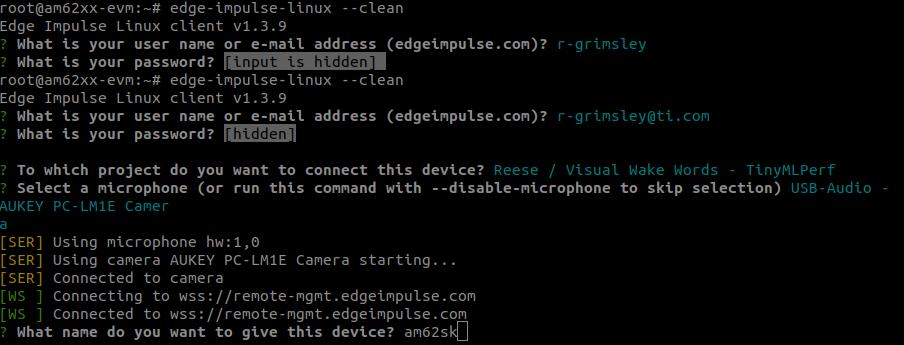
The command line will look like the following by the end of this process:
Device Setup from Command Line#
Here is an example of what the Edge Impulse tool will look like. Be sure to select the appropriate type of sensor for your device.
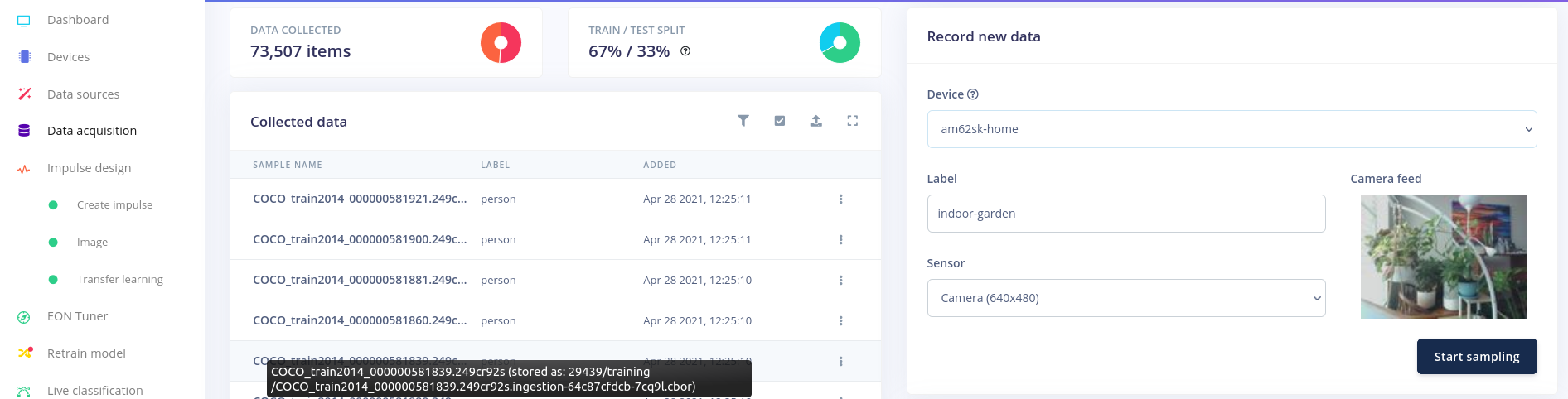
Collecting New Data on Device -> Cloud#
If you want to select a different project, rename the device, change the sensor or login with a different account, use the –clean command line option when running edge-impulse-linux
5. Explore Edge Impulse’s tools#
See more of what they have! If this is a new project, experiment with creating new processing blocks (“Impulses”), data labelling, model training, model tuning, different models, etc.
Once you have a model you’re ready to test on the device, you are ready to move on.
6. Run Inference on your Starter Kit#
To test models and evaluate performance on device, Edge Impulse provides a command line tool that will download the model, compile it into a program, and then run it on live input to show how it performs on your target device. The steps are very similar to before, but all of the machine learning magic will now be on your device
Run the follow command:
edge-impulse-linux-runner
Similar to before, login, select a project, select an input source (if there are multiple options), and let it run.
If it is the first time this model has been used on this device, it will take a moment to compile the program. Before it begins running inference on new input, it will quickly print out that there is a local network server where you can see this happening live. Generally, this is the IP address of the device at port 4912. Below is an example of this printout in the command line.
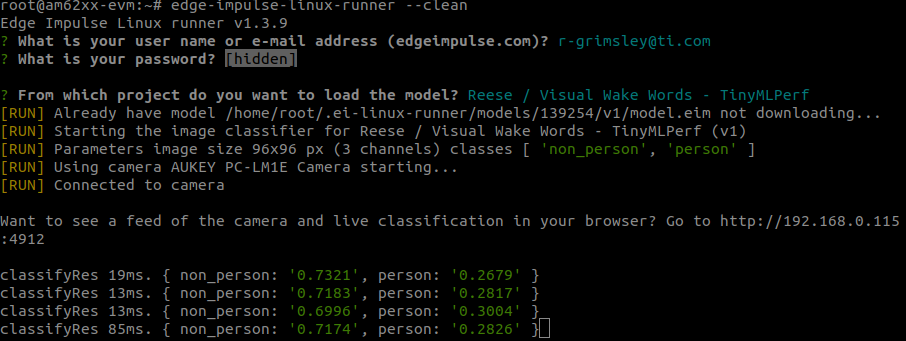
Running on the Device#
The exact execution time per inference and set of classes to recognize will depend on the model used in your project.
If you’d like to change a configuration when rerunning the command, add the –clean tag, just as before.
7. Moving Forward with an Edge Impulse design#
If you’ve made it this far, congratulations! You have one of our processors connected in with Edge Impulse’s tools, which are great for designing, debugging, and deploying high quality machine learning models to embedded targets.
We’re expecting to have a tighter integration with Edge Impulse soon, but until then, all of the standard Linux tools and outputs from EI will work in Linux for the AM62x and TDA4VM. The Linux deployment option (shown below) produces an EIM model, which is meant to work alongside the EI SDK. For now, the C++ and Node.JS SDKs will work. Additionally, the Dashboard has an option for downloading Tensorflow Lite models, which will run on our device without issue since that runtime is included in the Processor SDK for Linux by default.
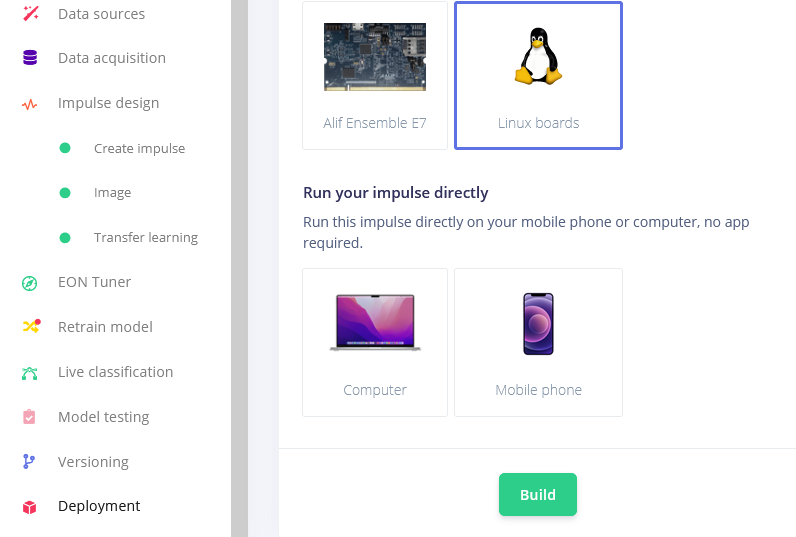
Deploying a Model#
Or download the model(s) from the Blocks output. Note that devices with a deep learning accelerator will work best on int8 models.
Deploying a Model#