How-To Guide - Assign a specific LaunchPad to a CCS project#
Each CCS project can be configured to use a specific LaunchPad for all the relevant operations, such as programming and debugging. When only a single LaunchPad is connected to the PC, this is not required, since this LaunchPad will be selected automatically by CCS. On the other hand, when more than one LaunchPad is connected to the PC simultaneously, you must associate a target LaunchPad with each project you wish to program or debug (There is no mechanism to select it on-the-fly).
The following steps will guide you through specifying a target board for CCS projects.
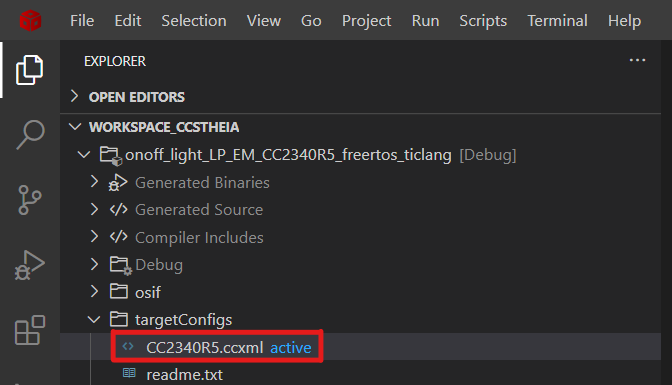
In CCS’ Project Explorer view, select the required project.
Expand the folder targetConfigs
Resource Explorer#
Double click on the ccxml file for your target (see red rectangle in the capture above). In the captures above, the project is onoff_light and the target is CC23xxR5 - your project and target may be different, depending on the Lab you are currently doing. E.g., if you’re working on a CC2340R5 LaunchPad, the file is called CC2340R5.ccxml.
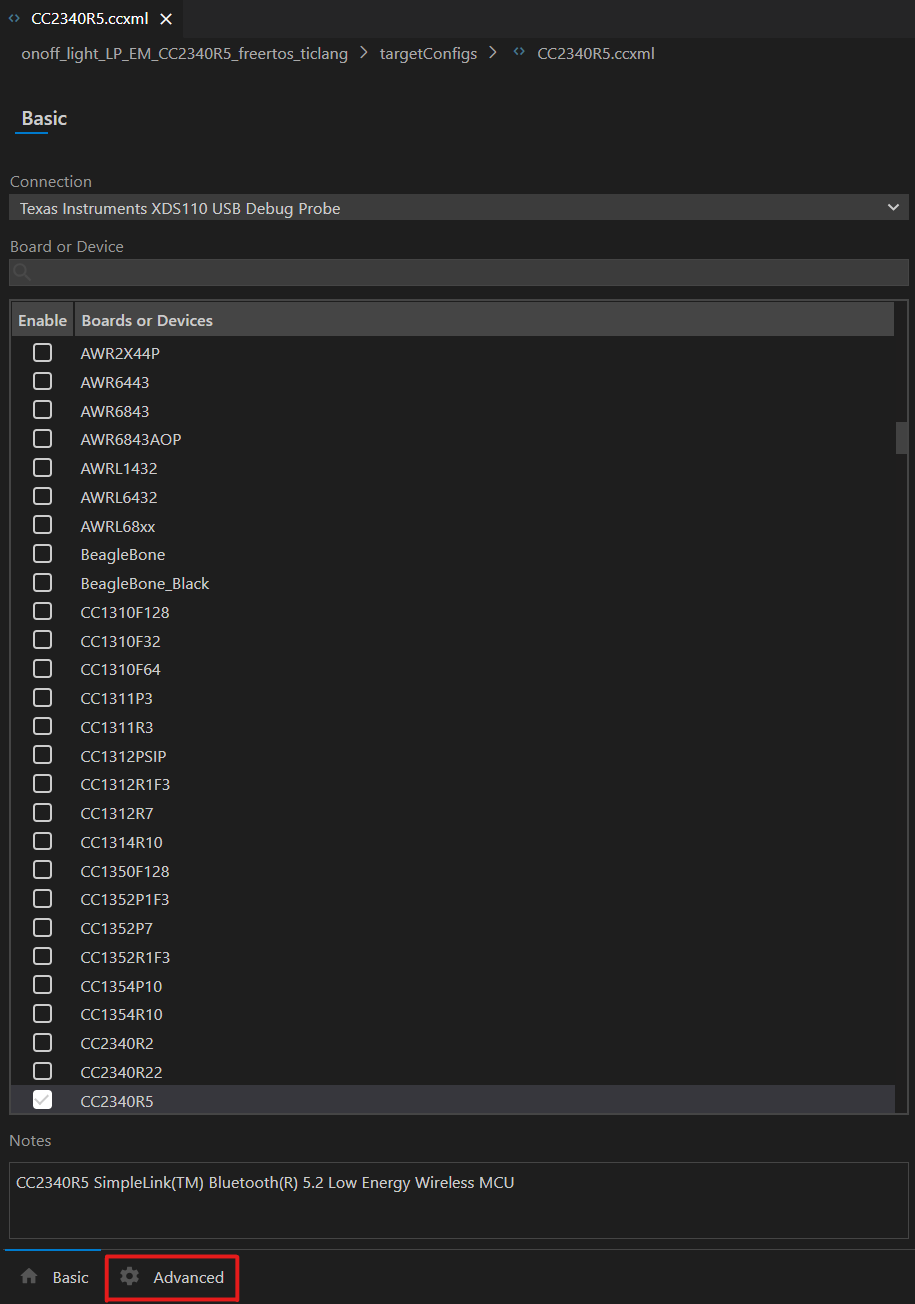
Click on the Advanced tab at the bottom of the file (see red rectangle in the capture below).
Resource Explorer#
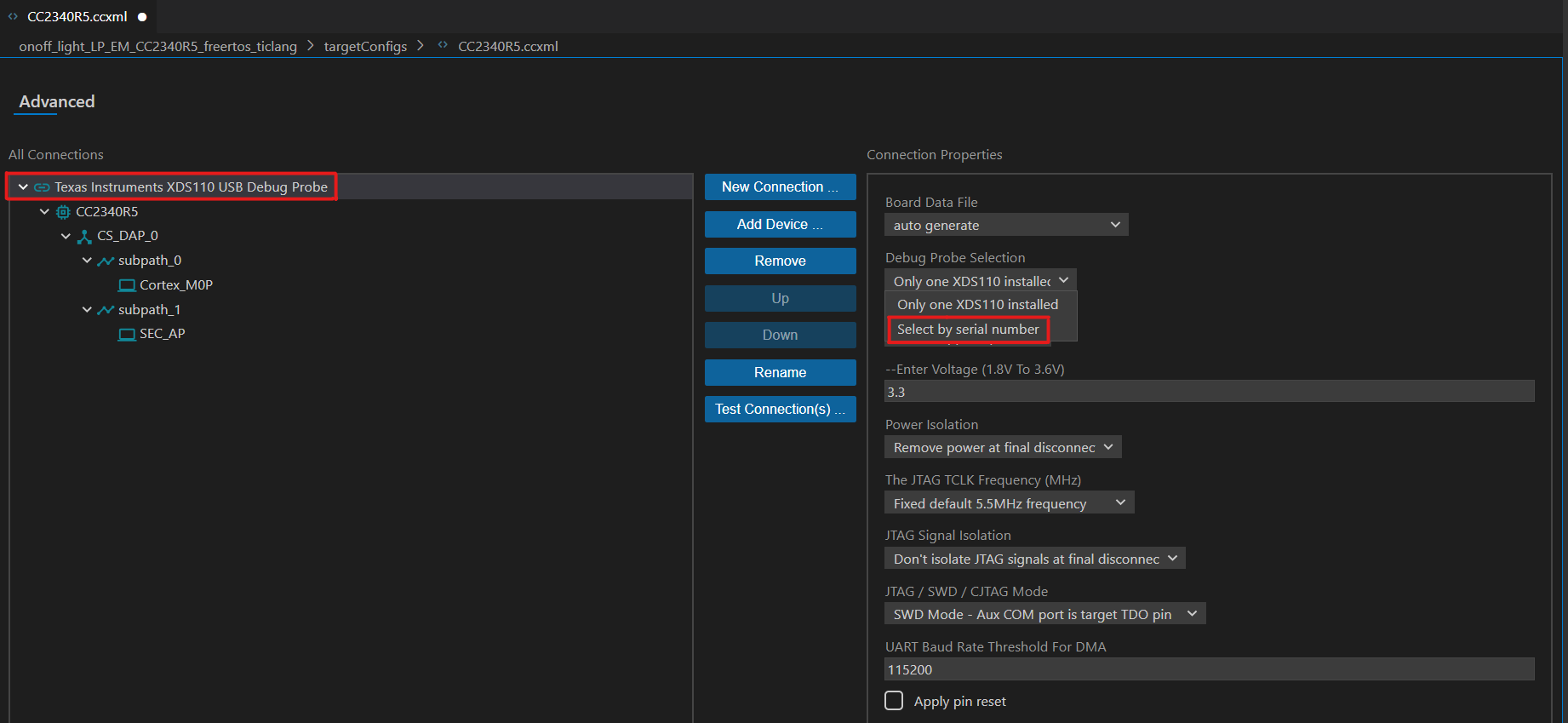
Click on Texas Instruments XDS110 USB Debug Probe (see red rectangle in the capture below), then navigate to Debug Probe Selection, click Select by serial number
Resource Explorer#
A new line will appear in the Connection Properties frame, With a text box titled – Enter the serial number. Delete any text that may already be in this text box, and then enter the XDS Device ID of the selected LaunchPad - make sure to specify all letters and digits (e.g. LS470GTW)
To find the serial number of your device you can use SmartRF studio. Alternatively, start command prompt and call
c:\ti\ccsv7\ccs_base\common\uscif\xds110\xdsdfu.exe -eto enumerate the connected debugger.C:\ti>c:\ti\ccs2020\ccs\ccs_base\common\uscif\xds110>xdsdfu.exe -e USB Device Firmware Upgrade Utility Copyright (c) 2008-2019 Texas Instruments Incorporated. All rights reserved. Scanning USB buses for supported XDS110 devices... <<<< Device 0 >>>> VID: 0x0451 PID: 0xbef3 Device Name: XDS110 Embed with CMSIS-DAP Version: 3.0.0.38 Manufacturer: Texas Instruments Serial Num: LS470GTW Mode: Runtime Configuration: Standard Found 1 device. C:\ti>
Insert the serial number. Above it’s
LS470GTW.Press on Ctrl + S to save the serial number.
You can also change the serial number to something easier to remember, or in case two debuggers have the same serial number.
C:\ti>c:\ti\ccs2020\ccs\ccs_base\common\uscif\xds110>xdsdfu.exe -m

USB Device Firmware Upgrade Utility
Copyright (c) 2008-2019 Texas Instruments Incorporated.  All rights reserved.

Scanning USB buses for supported XDS110 devices...


<<<< Device 0 >>>>

VID: 0x0451    PID: 0xbef3
Device Name:   XDS110 Embed with CMSIS-DAP
Version:       3.0.0.38
Manufacturer:  Texas Instruments
Serial Num:    LS470GTW
Mode:          Runtime
Configuration: Standard

Switching device into DFU mode.

C:\ti>c:\ti\ccs2020\ccs\ccs_base\common\uscif\xds110>xdsdfu.exe -s ABCDEF01 -r

USB Device Firmware Upgrade Utility
Copyright (c) 2008-2019 Texas Instruments Incorporated.  All rights reserved.

Scanning USB buses for supported XDS110 devices...

Setting serial number to "ABCDEF01"...

c:\ti>