Step 5: Check the Device State#
The SoC ID of the device is used to determine the device state.
Steps to check if the device has been converted to HS-SE#
Remove both USB-C cables from ports J13 and J15 on the EVM to power off the device.
Set the EVM to UART boot mode by setting the appropriate boot mode switches as shown below:
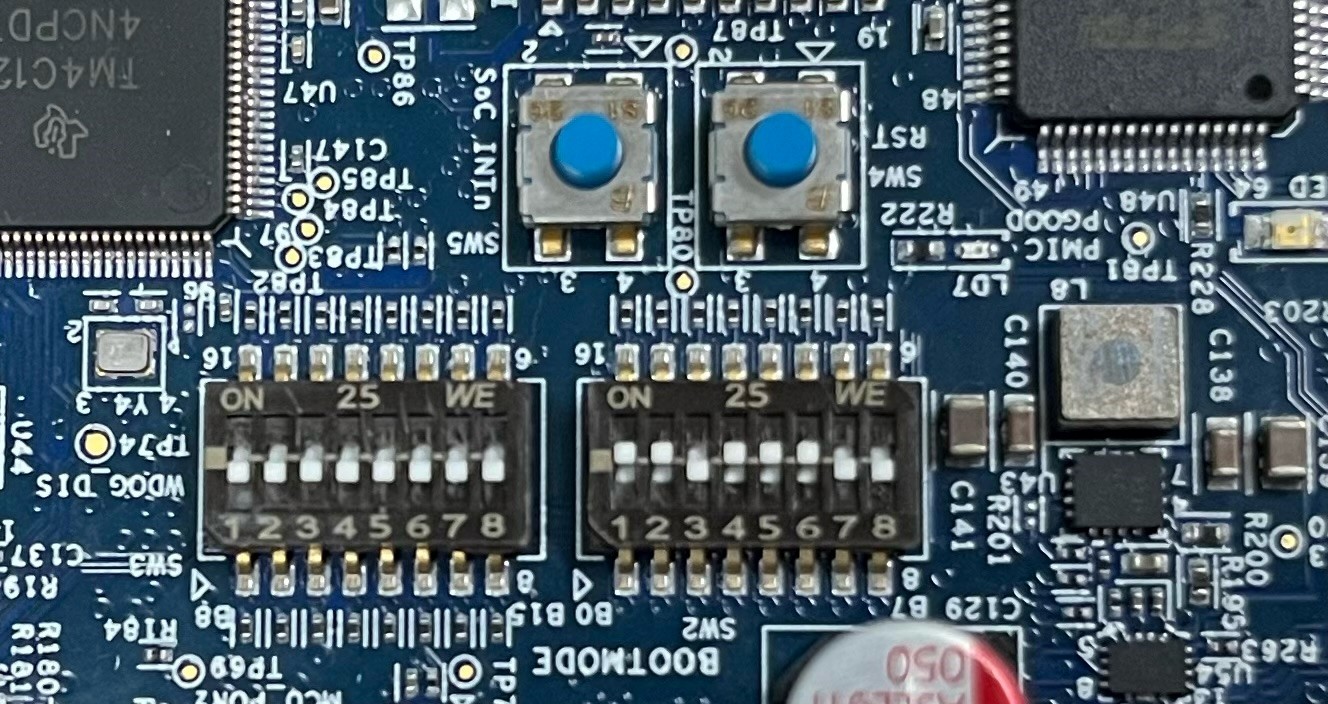
UART Bootmode#
Open CCS, select View -> Terminal. Open Launch terminal window. Select terminal for R5 UART port (ttyUSBxx). This is usually the numerically first USBxx.
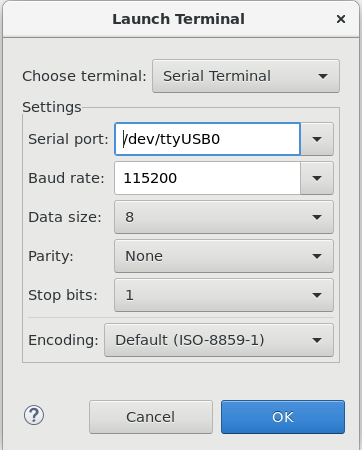
Terminal settings for USB0#
Connect the EVM to power (J13) again. The terminal will show SoC ID followed by characters CCC on terminal. This SOC ID is reported by Boot ROM and contains information about device configuration, including the device state.

SoC ID on UART terminal#
Copy the entire string except CCC (ping characters) and paste in <MCU_PLUS_SDK_INSTALL_DIR>/source/security/sbl_keywriter/tools/socid.txt file
Run the command below from the directory <MCU_PLUS_SDK_INSTALL_DIR>/source/security/sbl_keywriter/tools. This command is used to convert SoC ID from hexadecimal numbers to human readable text.
python3 parse_uart_boot_socid.py socid.txt
Device information, including the device state, will be displayed as shown below.
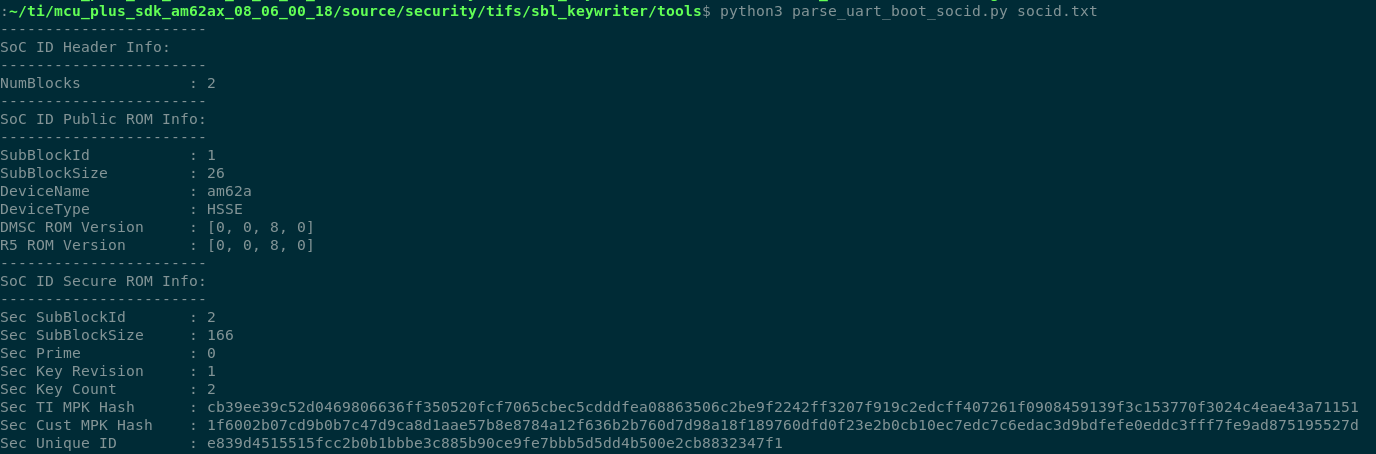
Device state shown as HS-SE#